Add Separator Line Between Commands on Linux Terminal

3:51 PM

If you are a person who often perform daily tasks via command line interface, you might have ever performed multiple commands at once (usually by adding "&&" between them). But, you might be confused when analyzing the output of every command and when the command is finished. So today, I'd like to show you how to add a handy separator line between commands on Linux Terminal.


As you can see the picture above, at the end of every command there will be a separator line followed by the time completion of related command. Are you interested in it? OK! Please open your text editor and paste the following code:
  • # Fill with minuses
  • # (this is recalculated every time the prompt is shown in function prompt_command):
  • fill="--- "

  • reset_style='\[\033[00m\]'
  • status_style=$reset_style'\[\033[0;90m\]' # gray color; use 0;37m for lighter color
  • prompt_style=$reset_style
  • command_style=$reset_style'\[\033[1;29m\]' # bold black
  • # Prompt variable:

  • PS1="$status_style"'$fill \t\n'"$prompt_style"'${debian_chroot:+($debian_chroot)}\u@\h:\w\$'"$command_style "

  • # Reset color for command output
  • # (this one is invoked every time before a command is executed):
  • trap 'echo -ne "\e[0m"' DEBUG


  • function prompt_command {

  • # create a $fill of all screen width minus the time string and a space:
  • let fillsize=${COLUMNS}-9
  • fill=""
  • while [ "$fillsize" -gt "0" ]
  • do
  • fill="-${fill}" # fill with underscores to work on
  • let fillsize=${fillsize}-1
  • done

  • # If this is an xterm set the title to user@host:dir
  • case "$TERM" in
  • xterm*|rxvt*)
  • bname=`basename "${PWD/$HOME/~}"`
  • echo -ne "\033]0;${bname}: ${USER}@${HOSTNAME}: ${PWD/$HOME/~}\007"
  • ;;
  • *)
  • ;;
  • esac

  • }
  • PROMPT_COMMAND=prompt_command
Save the above code as ".bash_ps1" (don't forget the dot character) and place it in your Home folder.
Lazy copying the code? Download the ".bash_ps1" file here.

Now, edit your ".bashrc" file which is located in your Home folder and append the below code:
  • if [ -f "$HOME/.bash_ps1" ]; then
  • . "$HOME/.bash_ps1"
  • fi
Save the change and run the following command to "apply" your work:
  • source ~/.bashrc

Regards :)

0 comments

» read more....

Trick: Currency Converter on Command Line

7:59 AM

Hello, today I'd like to show you a simple trick to have simple currency converter on Linux command line. I hope this post is useful for you especially for those who often works with international sales or trading. Here is a working example.


It uses Google Finance service to work, please make sure you are connected to the Internet when using it. Now, please open ".bashrc" file using your favorite text editor. If you use Gedit, simply type the following command to open it:
  • gedit ~/.bashrc
Create new line at the end of the file, and put this code:
  • currency_convert() {
  • curl -s "http://www.google.com/finance/converter?a=$1&from=$2&to=$3" | sed '/res/!d;s/<[^>]*>//g';
  • }
After editing, ".bashrc" file should looks like this:


Save the changes and close the text editor. Now, open Terminal and type the following command to apply the changes you've made:
  • source ~/.bashrc
Done! Now, you can use simple currency converter by typing:
  • currency_convert 1 usd eur
The above command convert 1 US Dollar into Euro. Please change the code to suit your needs.

Enjoy :)

0 comments

» read more....

TermSaver: Terminal Based Screensaver

2:59 AM

TermSaver is a  cool screensaver that can run from the command-line interface or terminal in Ubuntu/Linux. TermSaver isn’t supposed replace other screensavers that come with your desktop such as GnomeShell, Unity, KDE, or other Desktop Environment.

And it also might not be able to carry out the actual purpose of a screesaver since it lacks a lot of pixel movements (screen animations), which otherwise helps to prevent “screen burns” on display devices.

But if you are using command-line as your primary interface or, if you’re a desktop user who usually uses the Terminal emulator and looking for a screensaver that’s quite fun to use, then you might wanna try “TermSaver”.

Installing TermSaver in Ubuntu

Install pip a tool for installing and managing Python packages
  • $  sudo apt-get install python-pip python-dev build-essential
Now you are ready to install TermSaver on your machine, issue the following command at the terminal.
  • $ sudo pip install termsaver
Using TermSaver

Issue the following command in the terminal,
  • $ termsaver --help
This will list out the arguments to be used with termsaver command to display the text based screensavers.
Usage: termsaver [screen] [options]

Screens:

 clock                     displays a digital clock on screen
 randtxt                displays word in random places on screen
 dot                        displays a random running dot
 asciiartfarts       displays ascii images from asciiartfarts.com (NSFW)
 rfc                         randomly displays RFC contents
 quotes4all          displays recent quotes from quotes4all.net
 programmer     displays source code in typing animation
 urlfetcher          displays url contents with typing animation
 jokes4all             displays recent jokes from jokes4all.net (NSFW)
 rssfeed                displays rss feed information

For example if I use the asciiartfarts as the screen for termsaver
  • $ termsaver asciiartfarts
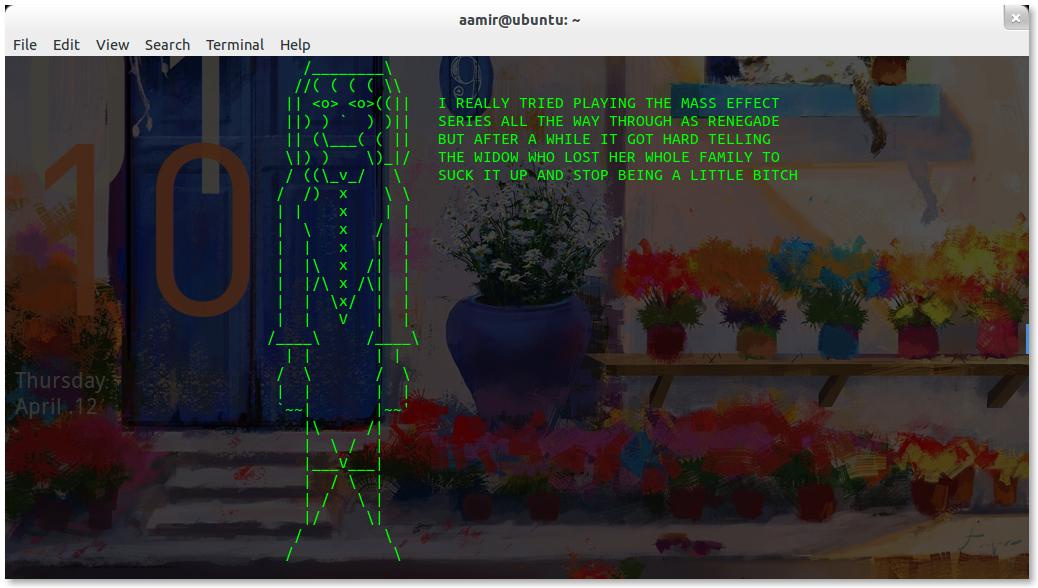
this will show the random ascii art from asciiartfarts.com unless I terminate it using Ctrl + C


 Enjoy!

0 comments

» read more....

Fu: CommandLineFu.com from the Command Line

11:09 AM

Before starting, please let me tell you what CommandLineFu.com is:

Commandlinefu.com is an online repository for recording commandline gems, that you return to again and again
By now, CommandLineFu already has 8,897 commands to get many things done via command line interface (CLI). What is Fu? As simply as its name, Fu is a command line interface which allows us to search, copy, and display information on CommandLineFu.com based on given keyword. For example, you want to what commands related to PDF file, Fu will give you this information:


Installation on Ubuntu
Type the following command to install Fu on Ubuntu:
  • git clone git://github.com/samirahmed/fu.git
  • cd fu/
  • sudo make install
Brief usage instruction
For example, you want to search commands related to PDF file, the command you should type is:
  • fu pdf
By default, Fu only displays three commands. If you want to display ALL commands available, type the following command:
  • fu -a pdf
In case, there are too many results on the screen, you can limit the number of the search results:
  • fu -n 5 pdf
The above command will only display five commands on the screen.
Fu is capable to display URL related to the commands and vote given to it.
  • fu -v pdf


Well, if you find any interested command, you can copy it to the clipboard, by typing the following command:
  • fu -c number-of-command
Change number-of-command with the number related to the command displayed on screen.

For further information, below is video which shows us how to use Fu, enjoy!


Regards :)

0 comments

» read more....

Playterm: Embed Your Terminal Recordings Online

10:32 PM

Playterm is a web service which can replay your terminal sessions online, by providing embedcodes which you can put onto your blog, article or website. This is very useful especially for you who often makes tutorials or presentations about Command Line Interface (CLI) in your online articles.


Why you should use Playterm?
There are several reasons to use PLAYTERM, and replay terminal recordings online:
  • its extremely educative
  • best promotion-tool for CLI application(s) for ALL audiences!
  • you can explain, and perform commands at the same time
  • its more timesaving and readable than recording a playterm.g, or wink movie
  • its timesaving: a tutorial AND showcase at the same time.
  • uses less bandwidth then flash(video) solutions
  • lightweight javascript embedcode to drop in your blog/article/website
  • promote and present your commandline app the web 2.0 way!
Unfortunately, Playterm doesn't allow us to set our own video size. It has only two size of video: 80x24  pixels and 120x35 pixels.

If you are interested in recording your Terminal activity and share it with your friends, you might enjoy using Playterm:

Playterm: Embed Your Terminal Recordings Online

How to record my Terminal activity? Please click here to get the instruction to do so.

0 comments

» read more....

Free Ebook: The Linux Command Line

11:03 AM

Nowadays, most computer users are only familiar with the Graphical User Interface (GUI) and think that Command Line Interface (CLI) is an old-fashioned way to interact with computer. This is not true, because command line interface is expressive way to interact with computer, just like writing letter or message to our friends. It's been said that:

graphical user interfaces make easy tasks easy, while command line interfaces make difficult tasks possible

So, learning command line interface is important if you want to get the most out of Linux operating system. Linux command line is a great tool because we can perform a lot of tasks there. There are many references to learning command line interface. One of them is an eBook I'll post here.

This book is entitled "The Linux Command Line" written by William E. Shotts. This book contains 522 pages and divided into five parts:
Part 1: Introduction
Tells some story related with command line interface.

Part 2: Learning The Shell
Starts the exploration of the basic language of the command line including such things as the structure of commands, file system navigation, command line editing, and finding help and documentation for commands.

Part 3: Configuration And The Environment
Covers editing configuration files that control the computer's operation from the command line.

Part 4: Common Tasks And Essential Tools
Explores many of the ordinary tasks that are commonly performed from the command line. Unix-like operating systems, such as Linux, contain many “classic” command line programs that are used to perform powerful operations on data.

Part 5: Writing Shell Scripts
Introduces shell programming, an admittedly rudimentary, but easy to learn, technique for automating many common computing tasks. By learning shell programming, you will become familiar with concepts that can be applied to many other programming languages.

Well, if you want to learn Linux command line interface to get the most out of it, please download this book by clicking the below link:

Download eBook: The Linux Command Line

Regards :)

0 comments

» read more....