Install Emerald Theme Manager on Ubuntu 11.10 Oneiric Ocelot

7:57 AM

Emerald is beautiful window decorator which has a lot of fans back then. Unfortunately, Emerald is not included in Ubuntu Oneiric repositories so you can not easily. So, today I'd like to show you how to install Emerald on Ubuntu 11.10 Oneiric Ocelot both compiling via sources and installing via PPA. Before we jump, please take a look at a sample of Emerald Window Decorator theme (image via: WebUpd8)


Installing from source
Let's jump into our first method "Installing from sources". I found this method yesterday on Ubuntuforums.org, so please refers to the appropriate thread for further information.
Open the Terminal and type the following command to install applications and tools for compiling Emerald from sources:
  • sudo apt-get install git autoconf libtool libwnck1.0-cil-dev libwnck-dev intltool libdecoration0-dev
Once installed, you must download the Emerald source and patche to work on Unity (Ubuntu 11.04 and Ubuntu 11.10), compile and then install it. Those steps can be done by typing the following commands:
  • wget http://cgit.compiz.org/fusion/decorators/emerald/snapshot/emerald-0.9.4.tar.gz
  • tar -xf emerald-0.9.4.tar.gz
  • cd emerald-0.9.4
  • cd src
  • rm main.c
  • wget http://www.learn-digital.com/ubuntu/emerald-0.9.4/src/main.c
  • cd ..
  • ./autogen.sh && make clean && make distclean && ./configure --prefix=/usr && make && gksu make install
Installing via PPA
Thanks to Andrew @WebUpd8 who provides PPA for Emerald so we can install it easily on Ubuntu 11.10 Oneiric Ocelot. Type the following command to install Emerald via PPA:
  • sudo add-apt-repository ppa:nilarimogard/webupd8
  • sudo apt-get update
  • sudo apt-get install emerald
Once Emerald installed on your system, please select a theme from Emerald Theme Manager and activate by typing:
  • emerald --replace
To have Emerald run at startup you must configure it via CompizConfig Settings Manager a.k.a CCSM. Have not installed CCSM yet? Type this command:
  • sudo apt-get install compizconfig-settings-manager
Then open CompizConfig Settings Manager (CCSM), on the left pane select "Window Decoration" plugin and under "Command", enter: "emerald --replace".

Regards.

0 comments

» read more....

How to Change Mouse Cursor Theme on Ubuntu 11.10 Oneiric Ocelot

10:53 PM

The newly Ubuntu version 11.10 Oneiric Ocelot has no configuration tool to customize your appearance including mouse cursor. But there is nothing impossible, you can still change mouse cursor using many many tricks. Today, I'd like to show one of those tricks. OK! Let's get started.


First thing first, please install your desires cursor theme. In this tutorial, I will use Oxygen Cursor Theme that can be installed by typing the following command:
  • sudo apt-get install oxygen-cursor-theme
Now, we are going to install Ubuntu Tweak for easier configuration:
  • sudo add-apt-repository ppa:tualatrix/next
  • sudo apt-get update
  • sudo apt-get install ubuntu-tweak
Once installed, please proceed to "Tweaks > Theme", under "Cursor Theme" option select your desired mouse cursor theme. The next step is activating the change to system-wide environment, you can do that by typing:
  • sudo update-alternatives --config x-cursor-theme
You will be offered many options, please type the number of your desired mouse cursor theme and press Enter:


Now, logout and login again to see the effect.

Enjoy :)

0 comments

» read more....

How to Install Google Earth on Ubuntu 11.10 Oneiric Ocelot

12:33 PM

Hello everyone! Good to see you again. Today I'd like to write a tutorial on how to install Google Earth on Ubuntu 11.10 Oneiric Ocelot. Google Earth is one of Google products acts as a virtual globe, map and geographical information program that lets you fly anywhere on Earth to view satellite imagery, maps, terrain, 3D buildings, from galaxies in outer space to the canyons of the ocean. It's a great application and fortunately you can run it natively on Ubuntu including the latest Ubuntu 11.10 Oneiric Ocelot.


First thing first, you must download the Google Earth installer from its official website, click here to download. Select your suitable architecture (32 bit or 64 bit) and hit "Agree and Download".

Once downloaded, install Google Earth by double-clicking its installer or typing the following command:
  • sudo dpkg -i google-earth-stable_current_i386.deb
  • sudo apt-get -f install
Once installed, Google Earth is in the Internet section of Unity Dash.

Enjoy :)

0 comments

» read more....

Fix VirtualBox Error "Failed to access the USB subsystem" on Ubuntu 11.10 Oneiric Ocelot

5:51 AM

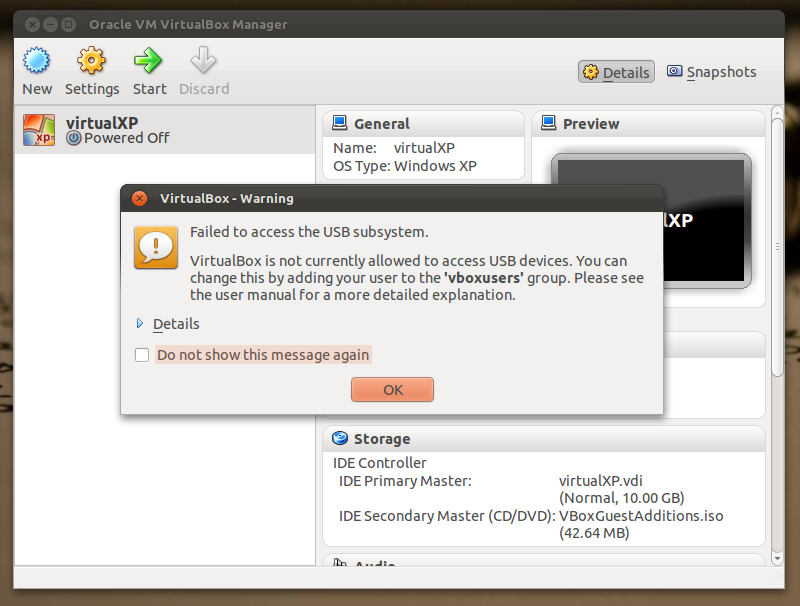
When you run VirtualBox at the first time on Ubuntu 11.10 Oneiric Ocelot, you may get this following error message: "Failed to access the USB subsystem. VirtualBox is not currently allowed to access USB devices. You can change this by adding your user to the 'vboxusers' group. Please see the user manual for more detailed explanation."


As describe in the error message, we must add the user to 'vboxusers' group to fix this problem. Unfortunately, there is no GUI tool to manage users and groups on Ubuntu 11.10 Oneiric Ocelot (yet). So, we must do it manually by using command line.

Assume that we have user "hok00age" and we'll add him to member of "vboxusers" group. Simply type the following command:
  • sudo usermod -a -G vboxusers hok00age
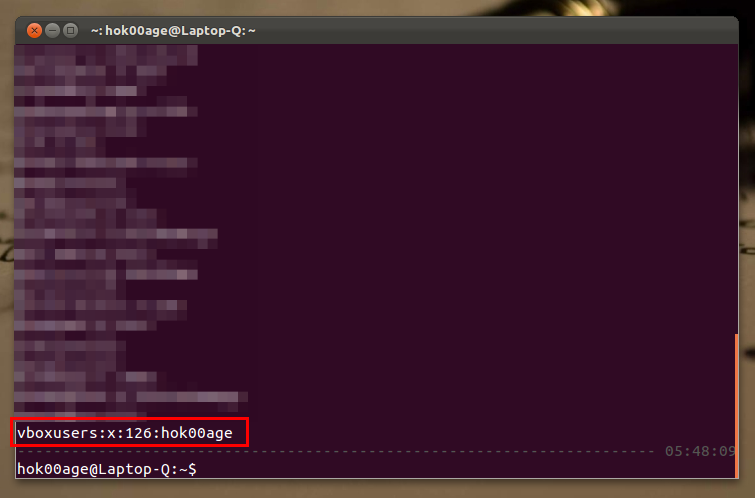
Make sure you have done it correctly by checking "/etc/group" file:
  • cat /etc/group

Restart your computer and once computer restarted, run VirtualBox and check if the problem is fixed.

Enjoy :)

0 comments

» read more....

Install ProZilla Download Accelerator on Ubuntu 11.10 Oneiric Ocelot via PPA

7:35 AM

ProZilla is ncurses based download accelerator that supports parallel downloads, HTTP and FTP downloads with FTP search feature. FTP search means ProZilla can search fastest FTP mirror for faster download speed. Because it based on ncurses, ProZilla is lightweight download accelerator too.


Installation:
Ubuntu Lucid, Maverick, Natty and Oneiric can install ProZilla download accelerator by simply typing the following command:
  • sudo add-apt-repository ppa:tldm217/tahutek.net
  • sudo apt-get update
  • sudo apt-get install prozilla

Usage instruction:
General usage
  • proz download_link
Resume download
  • proz -r download link
Limit download speed (at 20000 bps)
  • proz --max-bps=20000 download_link
Do FTP search
  • proz -s download_link
More download options
  • proz --help

Happy downloading :)

0 comments

» read more....

Install VirtualBox 4.1 on Ubuntu 11.10 Oneiric Ocelot

7:14 PM

VirtualBox is a virtualization application that can help you run any x86 and AMD64/Intel64 compatible operating system on host machine. VirtualBox runs on Windows, Linux, Macintosh, and Solaris hosts and supports a lot of guest operating systems such as (not limited to) Windows NT 4.0, 2000, XP, Server 2003, Vista, Windows 7, DOS/Windows 3.x, Linux (2.4 and 2.6), Solaris and OpenSolaris, OS/2, and OpenBSD. VirtualBox 4.1.4 is now available for Ubuntu 11.10 Oneiric Ocelot.


Adding VirtualBox repository:
  • sudo add-apt-repository "deb http://download.virtualbox.org/virtualbox/debian oneiric contrib"
  • wget -q http://download.virtualbox.org/virtualbox/debian/oracle_vbox.asc -O- | sudo apt-key add -
  • sudo apt-get update
Installing VirtualBox 4.1:
  • sudo apt-get install virtualbox-4.1
If you want USB 2.0, VirtualBox RDP and PXE boot for Intel cards support on your guest machines, you have to install extension pack that can be downloaded here.

Installing extension pack
Once extension pack downloaded, open VirtualBox and navigate to "File -> Preferences", at the "Extensions" section, click icon "Add package" and locate your downloaded extension pack.


And then follow on-screen instructions.

0 comments

» read more....

Ubuntu 11.10 Review and Features (Screenshot)

3:42 PM

Finally Ubuntu 11.10 Codenamed 'Oneiric Ocelot' has been officially released, the worlds most popular Linux operating system 'Ubuntu' has been released by canonical on 13 October 2011.

Ubuntu Linux logo
As writen in  Ubuntu 11.10 preliminary notes, Ubuntu come with full Unity experience and LightDM as default Login screen in Ubuntu, Lubuntu, Xubuntu and some of  `unity based` Ubuntu Fork. Since its last release on April 28th 2011, today we will what changes have been made.


The Desktop
Ubuntu 11.10 Final come with Unity which well collaborated with Compiz. Some of features in this release may ever seen in Ubuntu 11.10 alpha and beta, here's summary of notable changes of Ubuntu 11.10 since Ubuntu 11.04 Natty Narwhall :
  • Ubuntu 11.10 use Linux Kernel 3.0.0-12-generic 
  • Unity Desktop run on Gnome 3.2 (Fresh from the oven!!) .
  • LightDM is default login screen.
  • Ubuntu menu in the top left screen is Gone, replace with unity menu lens. 
  • Gnome Classic (Ubuntu Classic theme) totally remove, just leaving the choice Unity and Unity 2D.
  • A new appearance of Alt+Tab switcher (this features has been use since Oneiric beta) completed with window preview. Even though it's looks more 'simple' and 'old' compared with compiz cover flow, Unity Alt+Tab switcher not forget the functionality.
  • Unity dash completed with left side menu 'lens' which filter the application based on category and ratings, this lets you find installed applications easily.
  • Some application have a new Icon. and looks bigger than before. 
  • The Dash has a new music lens, linked to Banshee and Ubuntu One Music Store, that searches your personal and online music collections.
  • Better performance of launchers and panel, ported to GTK 3 and GTK 3-based indicator stack. 
  • Gwibber brings improved performance and appearance.
  • Ubuntu Mono and Ubuntu Condensed become new member of Ubuntu Font Family.

Ubuntu 11.10 Desktop Screenshot
Here screenshot of my workspace, many interesting things I have encountered but too much too write in here, so try it on :)
Ubuntu 11.10 with Unity
Ubuntu 11.10 multi workspaces

Firefox 7 no longer beta..

Firefox 7.0.1 in Ubuntu 11.10
We have new applet in desktop panel, that is simple setting in the corner of desktop..

New 'corner' Setting on desktop Panel
All social media and online account now in a click!
We have something missing in the nautilus, did you mention it ?

Nautilus appearances in ubuntu 11.10
Software Center
Ubuntu 11.10 application/software manager now is Ubuntu Software Center 5.0 because synaptics totally remove from default application (but you can install it by manual then), in Ubuntu 11.04 we counter 33.962 application provided in software center, Now we have 36.112 application provided, this mean we have 2150 new application which not available before.
Ubuntu Software Center 5.0

Ubuntu Software Center 5.0 looks more fresh and more usable, its completed with user review, rating, Application list views can also sorted by top-rated, by name, and also by the date the application appeared in the Center.

Applications Included
Here are list of application version which is available in default Ubuntu 11.10  application and provided in its repository, as follows :
  • LibreOffice 3.4.2
  • Firefox 7.0.1
  • Thunderbird 7.0.1
  • Shotwell 0.11.2
  • Banshee 2.2.0
  • Empathy 3.2.0
  • Deja dup
  • Gwibber 3.2.0.1
  • Adobe Flash Player 10
  • Nautilus 3.2.1

Theme & Wallpapers
Like previous write in here, Ubuntu 11.10 Oneiric will come with 15 new wallpapers (1 new official wallpapers + 14 selected Community Wallpapers) which actually new and never include on ubuntu 11.04 (above).
Ubuntu 11.10 Wallpapers and Theme

Actually, Ubuntu 11.10 just leave 4 themes (GTK) to choose, that is Ambiance, Radiance, High Contras, and High Contras Inverse. We can't  change anymore the appearances of window by manual (window color, window border, etc) and we also lost toolbar menu in the Nautilus.


Notable Missing Application 
After finish installing Ubuntu 11.10 to our system, we hope that we will find a new experience without losing some great feature that available in previous version. Well, some application has much improvement, but some application has lost. here some lost application/features that we missed the presence.
  • We miss the toolbar menu in Nautilus. although this looks better but this  progress has limit our capabilities.
  • Synaptics, Ubuntu Software Center 5 can replace all functionality of synaptics, but for some reason 'on the same' computer Ubuntu Software Center runs so slowly compared with synapics.
  • I can't take fast Screenshot using compiz, compiz have utility to make fast screenshot by pressing the <super> + <button 1> , now i can't do it and back to the classic way :(
  • We have lost theme 'appearence' utility which let's us setting such window color, icon, default font, and window border. we're only left 4 theme to choose.
  • Gnome Classic, we also lost theUbuntu Classic as alternative desktop environment in login page, as we can see on login screen we have only a choice to Unity and Unity 2D. 

Downloads The Ubuntu 11.10
You do not need a long time to get some fresh installation of Ubuntu 11.10, just approximately 10 minute. Interesting to try it dude ? you can download and burn the ISO to CDs or Flash Drive then install it to the computer, download the ISO through following links :

Or try it online

0 comments

» read more....

How to Change Ubuntu 11.10 Oneiric Ocelot Icon Theme Using dconf-editor

8:03 PM

Ubuntu 11.10 Oneiric Ocelot does not have appearance properties so, we can't change GTK  theme's option and icon theme easily. Fortunately, there is such an application called dconf-tools that can be used to change some gnome appearance properties including gnome icon theme.


Install dconf-tools by typing the following command:
  • sudo apt-get install dconf-tools
Once installed, run dconf-tools and then go to org-->gnome-->desktop-->interface-->enter the name of your desired icon theme at "icon-theme.

If you don't know the exact name of your icon theme, just go to /usr/share/icons

0 comments

» read more....