
Firefox Revealed: Some Lesser known Firefox Commands

2:38 AM

Have you ever heard about Secret Firefox commands or hidden easter eggs inside Firefox ?

Well Firefox  have a special URI (Uniform Resource Identifier) scheme to display internal pages, or built-in functions. These commands start with an "about:" followed something, for example - "about:blank" displays a blank page.

Here is a list of rarely known Firefox Hacks


about:
Display information about Firefox.


about:mozilla 
Display a verse from the fictional Book of Mozilla


about:robots
Display some funny facts about Robots


about:home
Display home page with a Google search bar.


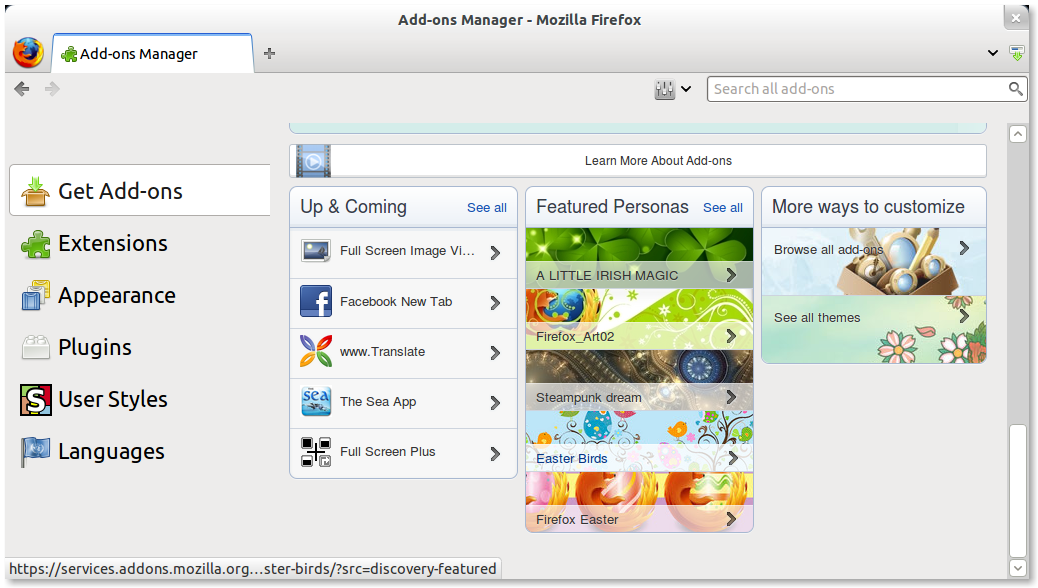
about:addons
Display the addons page

about:sync-tabs
Display tabs synced from other computers (tab syncing has to be enabled).


about:credits
Display credits in alphabetical order


about:license
Display Mozilla Public License


about:rights
Display licensing information and your rights.


about:logo
Display the logo used on the about: screen.


about:plugins
Display installed, currently enabled plug-ins. 


about:buildconfig
Display the arguments and options used to compile the Firefox build in use.


about:cache
Display information about the data in the browser cache.


about:crashes
Display details of crashes submitted by Mozilla's crash reporter.


about:memory
Display memory usage by Firefox


about:config (use with caution)
Display the Firefox configuration page with a lot of configuration options.


about:support
Display troubleshooting information.

about:privatebrowsing
Switch to private browsing mode

  
about:sessionrestore
 Display an interface for viewing about last session.


about:blocked
Display  the malware protection page used when the browser identifies a page as not safe for viewing.


about:certerror
Display the error page used when an SSL/TLS certificate is untrusted or otherwise invalid.


about:feeds
Display the page used when clicking the rss feed icon in the address bar.


about:neterror
Display  the error page used when the browser could not access the requested path.


about:permissions
Display permissions given by you to different websites, like allowing to store passwords, share your location, allow cookies, open pop-up windows, and maintain offline storage.


Thanks for reading, If you know more, Please let us know through comments.


0 comments

» read more....

QiOO: Insert Holy Quran Verses in Your Document

7:38 PM

Recently, I wrote about COOoder, an extension for LibreOffice or OpenOffice which allows us to beautify source code of many programming languages. Today, I'd like to inform you about an extension to put Holy Quran verses in your LibreOffice or OpenOffice document. Let's get started.


Downloading the extension
Make sure you have LibreOffice or OpenOffice installed on your system. Please download the extension here and select the latest version available.

Installing the extension
Inside the archive of downloaded file, you will find two files: font (*.ttf) and the extension (*.oxt). Before installing the extension, please make sure the font included in the archive is installed correctly. If you have no idea on how to install font in Ubuntu, simply type the following command:
  • cp ScheherazadeRegOT.ttf ~/.fonts/
  • fc-cache -f -v
Once the font installed correctly, now it's time install the extension. Please open LibreOffice or OpenOffice and navigate to "Tools > Extension Manager" then click "Add...".


Now, locate the *.oxt file you have downloaded.

Configuration
In order to make LibreOffice or OpenOffice displays Arabic text correctly (from right to left), we have to enable complex text layout. In LibreOffice or OpenOffice navigate to "Tools > Option > Language Settings > Languages", tick "Enabled for complex text layout" and select "Arabic (Saudi Arabia)" under CTL option.


Restart the application and you should be able to insert Quran text inside your document.

0 comments

» read more....

Syntax Highlighter Extension for LibreOffice/OpenOffice

7:19 PM

There are many IDEs we can use to help us write code faster and easier. Most of them have a nice syntax folding and highlighting. For example: selector, property, and value in CSS code have different color each other. But what happens when you copy the code and paste it on LibreOffice or OpenOffice to create PDF document of your codes? It is not beautiful as in IDE you use. Is there any solution? Yes, you can install COOoder extension for LibreOffice/OpenOffice to beautify your syntax.


COOoder is an extension for LibreOffice and OpenOffice which allows us to display the source code of a program in beautiful format as in IDE. As you can see in the picture above, selector, property, and value of CSS are given different colors. COOoder supports a wide range of programming language and most importantly, you can use it for free!

Installation
Please download the extension here. Once downloaded, open LibreOffice/OpenOffice and navigate to "Tools > Extension Manager" then click "Add..." and select your recently downloaded file.


Usage example
Using COOoder is easy. Simply block the text you want "beautify" and select "Tools > Add-Ons > COOoder" until COOoder window appears on screen. At the language section, please select the appropriate programming language for your code.


Easy does it?

0 comments

» read more....

Recovery Ubuntu Partition after Installing Windows [VIDEO]

10:41 AM

Today we will show you some 'old' video taken from youtube (thanks to Tru3m0sl3m) that show us how to recover Ubuntu Partition after installing Windows. This video practiced with Ubuntu Maverick and Windows 7, but I think that same way you can do in all version of Ubuntu and Windows OS over Windows XP.

This video shows that we don't need any extra program to recovery Ubuntu partition except Ubuntu booting cd it self, is this way quite simple or hassle ?, check this video :

0 comments

» read more....
Boost Netbeans Start Up Time

6:14 AM

If you are a programmer or a student who learns programming language especially Java programming language, you might know what Netbeans is. It is an IDE (Integrated Development Environment) for many programming languages. My favorite feature of Netbeans is its GUI Designer which let me design the user interface of my application easily. Unfortunately, Netbeans take long time to start. It takes 6.52 seconds to completely loaded. Well, I will give you a trick to reduce this loading time by up to 1.5 seconds. Let's get started!


Please find a file named "netbeans.conf". If you installed Netbeans via Package Manager, it's located in /etc/netbeans.conf. Otherwise, if you installed it by downloading the installer from Netbeans website it's located in installation_folder/etc/netbeans.conf.


Now, edit the file and find a line started with "netbeans_default_options". Here's the example:
  • netbeans_default_options="-J-client -J-Xss2m -J-Xms32m -J-XX:PermSize=32m -J-Dapple.laf.useScreenMenuBar=true -J-Dapple.awt.graphics.UseQuartz=true -J-Dsun.java2d.noddraw=true"
Replace the above line with this one:
  • netbeans_default_options="-J-client -J-Xverify:none -J-Xss2m -J-Xms32m -J-XX:PermSize=32m -J-XX:MaxPermSize=200m -J-Dapple.laf.useScreenMenuBar=true -J-Dsun.java2d.noddraw=true -Dsun.java2d.opengl=true -Dsun.java2d.d3d=false"
We turned off Java bytecode verification, making classloading faster, and eliminating the need for classes to be loaded during startup with -J-Xverify:none option. The "-Dsun.java2d.opengl=true" option is added for better graphic performance. It enables a new OpenGL-based pipeline for Java 2D used to support hardware-accelerated rendering using OpenGL.
For more options you can use to optimize Netbeans performance, please click here.

Regards :)

0 comments

» read more....

Unsettings: Unity Configuration tool

1:25 AM

UnSettings is a new tool for tweaking Unity in Ubuntu. Although there are many other tweaking applications like MyUnity, Gnome Tweak Tool, Ubuntu-Tweak available for Ubuntu but Unsettings include some extra features, such as the ability to change the themes for GTK, window manger, icons, cursors, switch off the global menu and the overlay scrollbars used in Unity, another nice feature is that Unsetting lets you to save your settings into and load from a text file (JSON format) so you can easily backup you settings or copy them to a different account.


Installing Unsettings in Ubuntu

Open terminal and enter the following commands
  • $ sudo add-apt-repository ppa:diesch/testing
  • $ sudo apt-get update
  • $ sudo apt-get install unsettings

You can install also Unsettings by downloading the  debian package from here

Bugs can be reported on this page


0 comments

» read more....

Vuse/Azureus : All In One BitTorrent Client Application

7:48 PM

Vuze is cross-platform BitTorrent Client which rich of features, you can find any Video easily and play it in High Definition (HD) Format.  

What is Vuse ?
Vuze originally known as Azureus is a cross-platform BitTorrent client written in Java, Vuze is application with rich of features. Through Vuse we can search and download torrent with powerful HD content and video, music and games, and convert all video format to playable format that recognize by your device (PC, Mac, iPhone, iPod, Apple TV, Xbox 360 and PS3).

What Vuse can do ? (Vuse Features)
Vuse is All in One BitTorrent application, you can find, mark out, convert, and download high quality video to your device, some things that you can do using Vuse  are :

Find Torrents Easily
Powerful torrent meta-search with login support for private trackers discover high quality content on the Vuze HD network.

Vuse Show Video based on categories
Download Fast
Download quickly and efficiently with intelligent bandwidth, queue and speed management. you can stop and resume without having to start the download all over again.
Find Video based on keyword

Play on all your screens
Sit back and savor the high-quality entertainment experience Now on iPhone, iPod, Apple TV, Xbox 360, Playstation 3, PSP and TiVo.

Play Online or Offline 
Not only you can play directly in Vuse without downloading, Vuse also completed with Offline playback that you can use on planes, trains, or automobiles.

Subscriptions
Once you find content you like, a subscriptions will automatically find similar content for you another time. You will be reminded if new episode are available.

Get a High Definition Video for Free
you can watch Gorgeous full screen HD (including 1080p, you can also choose lower video format if you have lack of bandwidth.

How to Install Vuse in Ubuntu ?
Ubuntu always provides the easiest way than other Operating System to install application, all you can do is go to Ubuntu Software Center or synaptics and find application by keyword azureus, then click install.

Other way, you can install vuse from stand alone installer, download Vuse 4.7 installer from Vuse website then install. * click following links to download
Because of Vuse write in Java, don't forget to complete your system with java and its library, do following to install : 
  • sudo apt-get install sun-java6-jre sun-java6-plugin sun-java6-fonts 
Is content on Vuze legal?
Maybe some of you are wondering, with the number of facilities that provided by Vuse (Music, Movie, and File), is all content that provided in Vuse are legal ?, here some statement taken from Vuse website.

It's important to recognize the difference between content from the Vuze HD Network (vuze.com) and content downloaded from other sites using the Vuze application (for example, by opening a torrent file from another site in a web browser) -- in other words, to understand the distinction between content downloaded from Vuze and content downloaded with Vuze (or using Vuze).

For the content available from Vuze, Vuze has strict copyright protection policies in place, and we work hard to ensure that all content there is available with the permission of the copyright owners. 

Content from the Vuze HD Network is the content that is displayed when you have Vuze HD Network selected in the left navigation pane. You can determine whether content in your Library that you have downloaded came from the Vuze HD Network or not by looking in the "From" column. Only content from the Vuze HD Network will have a blue frog displayed in that column. Content from other sites will have other icons in that column (for example, a round globe icon). (If you don't see the "From" column in your Library, you may add it using the Column Setup dialog, as described here: Column setup) 

Now we can find our favorite video easily, I strongly agree if they called one of most Powerfull BitTorent application on earth.

0 comments

» read more....

Take Ubuntu 2012 user survey

2:12 AM

Ubuntu is carrying out a User Survey to help build a picture of how people really discover, use and share Ubuntu. All the information will be anonymous and you are not required to reveal any contact details to take this survey

Results will be available to everybody through Ubuntu blogs. Click on the below link to jump to the survey page.


http://www.surveymonkey.com/s/UbuntuSurvey2012

0 comments

» read more....

Hackety Hack: Ruby Programming for novices

3:15 AM

Hackety Hack is an open source application that teaches individuals how to create software using Ruby Programming language. It combines an IDE with an extensive Lessons system. Hackety Hack is a cross-platform desktop application available for Windows, Mac and Linux, it also has integration with the website, where "Hackers" can share what they've learned, ask questions, and submit feedback.

Using Hackety Hack does not require any programming experience, and is designed for absolute starters in computer programming.

 With Hackety Hack, you can learn the Ruby programming language. Ruby is used for all kinds of programs, including desktop applications and websites.

Here is a list of programs which users have made using Hackety Hack.


Installing Hackety Hack

Download Hackety Hack from here, this will download a binary run file. Change the file permissions to executable,
  • $ sudo chmod +x hacketyhack-1.0.1.run
Now you are ready to run the Hackety Hack, open the terminal and issue the following command,
  • $ ./hacketyhack-1.0.1.run
 or double click the run file in the file browser.

Now you are ready to hack Hollywood style :)


Enjoy!

0 comments

» read more....

Cool Tasks You Can Do with VLC Media Player

7:23 AM

VLC Media Player is one of many successful open source software today. Beside, it can play many popular audio and video formats, VLC can do some cool tasks we might never use them. Today, I'd like to write a post about them.

1. Record screen activity (screencast)
We already have Eidete and gtkRecordMyDesktop to record screen activity a.k.a screencasting. But, VLC Media Player can used to do such task too. Open VLC, navigate to "Media > Open Capture Device" or press CTRL + C on the keyboard. In the "Capture Mode" option, select "Desktop" and don't forget to select "Convert" if you want to save your screencast into file.


2. Capture video from webcam
The next cool task VLC Media Player can do is capturing video from webcam. To do such task, just repeat the steps explained in number 1 above, but change "Capture Mode" to "Video for Linux 2".


3. Convert videos to many formats
To convert video using VLC Media Player, select "Media > Convert / Save ..." in the menu or press CTRL + R on the keyboard.


4. Taking snapshot of video
If you want to take image snapshot of currently playing video, simply right click anywhere on the video, navigate to "Video > Take Snapshot ...".


Have some additions? Fill in the comment form :)

0 comments

» read more....

Zanata: Free Translation Management System for open source projects

1:09 AM

Are you are an open source Developer? or a Documentation writer ? or simply a translator, then Zanata is a free Translation Management system for you.

If you are a developer or a content writer you can use Zanata to translate your software strings, your interface, your help files or your documentation translated and localized into different languages.

And if you are a translator, you can use Zanata to translate materials that Authors make available to you.

Zanata is a project from Redhat written in Java and uses modern web technologies like JBoss, Seam, GWT, Hibernate, and a REST API. It currently supports translation of DocBook/Publican documentation through PO files. Projects can be uploaded to and downloaded from a Zanata server using a Maven plugin or a Python client.

A public instance of Zanata is hosted at translate.zanata.org and is ready to accept content from open source projects for translation.

Here is a short video guide on how you can get a Zanata account.


And how to request a Project on Zanata

0 comments

» read more....

SUSE Studio: Build your own SUSE based Linux distro

10:31 PM

SUSE Studio is a free online Linux image creation service sponsored by Novell Inc. The company behind SUSE Enterprise Linux and Open SUSE Linux. With SUSE Studio you can develop your own SUSE based Linux OS, software appliance or virtual appliance, choosing which applications and packages they want on their "custom" Linux and create their own branding for it.

You can also choose between openSUSE, SUSE Linux Enterprise Server and SUSE Linux Enterprise Desktop bases for your custom builds, can choose GNOME, KDE and other desktop environments, The resulting build will be fully functional system with applications like Firefox, LibreOffice, and whatever apps they want.

Getting Started

Note: New and inexperienced users are advised to create their first custom build from the templates in SUSE gallery to avoid build problems due to dependency issues with selected packages. Below tutorial would be useful for both advance and new users to get started. Please also note that this article illustrates only essential steps required to create a custom build Linux and not all the aspects of SUSE Studio are covered in this tutorial.
Using SUSE Studio is very easy, what you need is just a browser and an Internet connection, you don't need to install any application on your system to create ISO files for your brand of custom Linux. Here is a short guide to get you started with SUSE Studio.

Open the website susestudio.com , it will open a welcome page, click on "sign in or create an account" you will be asked to login through your Novell, Google, Yahoo, Facebook, Twitter or Open ID accounts. If you don't have a Novell account Just choose any of the accounts such as google or facebook.


Just fill in your details and press "continue" to get started, you are now ready to start your own custom Linux distro.

Click on create you new appliance to start a new Project.


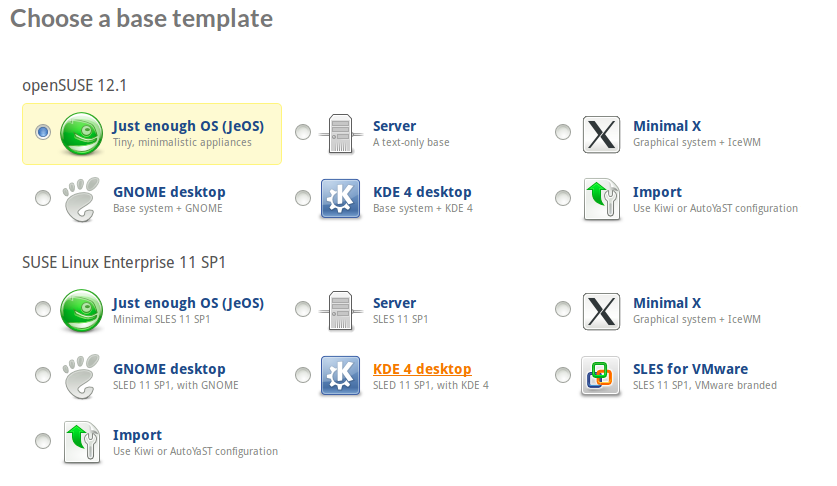
Choose a Template for your custom build, Choose the hardware architecture (32bit or 64bit) and give your Project a name, with which your custom build will be known to everybody,

Now you are ready to customize, rebrand and configure your new project,


Click on the software tab to select the packages and applications to be included in your custom build, you can add applications through repositories, upload your own RPM files , or even make a simple search in the SUSE repositories for the applications of your choice.


After choosing the applications, click on configuration tab, here you can customize Language, keyboard layout, time zone, network, firewall and user settings etc,. You can also personalize your custom build with your own logo and welcome screen background, select a default run level, add your own EULA (end user license agreement) add a custom script at boot time etc.


Now you are ready to build your first custom Linux or Software Appliance using SUSE Studio.

You can choose to create either a USB stick/hard disk image, Live CD/DVD, VMware/Virtual box, OVF virtual machine, hyper-v or Amazon EC2 image formats for your custom Linux/Appliance. Your Build may take some time depending on number of packages and will report any dependency issue or conflicts for any unmet dependencies at this step after you hit the Build button.

You can now either download the generated ISO image, or upload to Amazon EC2 and start using your own brand of Linux Desktop.


0 comments

» read more....